
Documentation
How to create notification channels and route them to a connector, how to start, checkpoint, and resolve canaries from the C#, Go, or Rust SDK, and how to wire up a verifier the Engine can call when one goes overdue.
Questions or concerns? Reach out at crashguard-admin@gmail.com.
Creating a notification channel
A channel is a named destination for alerts — it pairs a connector (Slack, PagerDuty, or email) with that connector's config, like a webhook URL or integration key. Create channels from the Admin App's channel editor, then attach them to a canary type so its alerts route there.
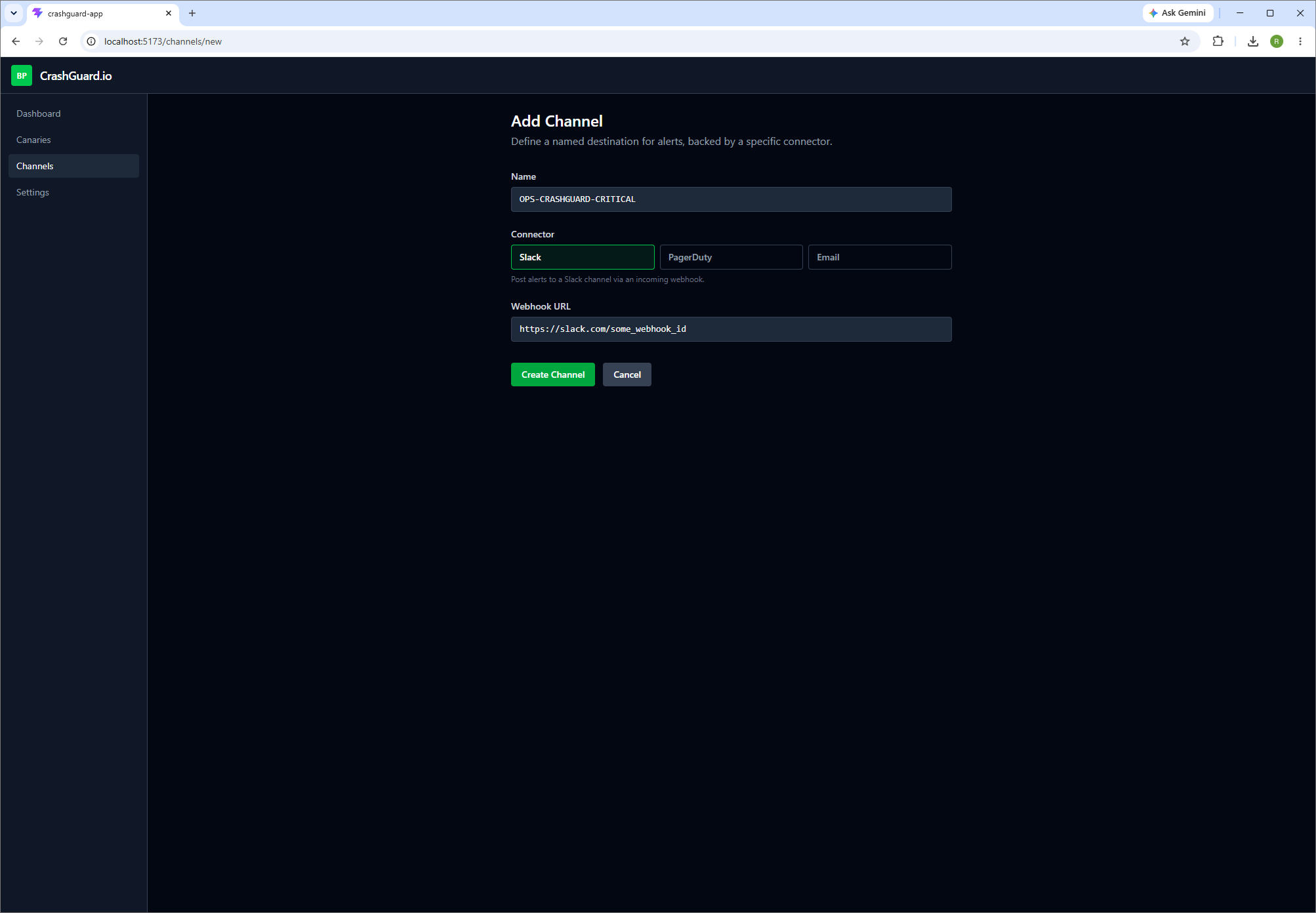
Under the hood, this calls POST /api/channels with a name, a connector
type, and that connector's config:
{
  "name": "on-call-slack",
  "type": "slack",
  "config": { "webhookUrl": "https://hooks.slack.com/services/..." }
}
type must be one of slack,
pagerduty, or email — each expects a
different shape for config:
slack—{ webhookUrl: string }pagerduty—{ integrationKey: string }email—{ address: string }
The response includes the new channel's id. Pass that id in a canary
type's defaultChannelIds to have every canary of that type alert
through it.
Creating a canary type
A canary type defines what you're watching for — its name, how long it can go without a check-in before it's overdue, its severity, and which channels it alerts through by default. Canaries you start from the SDK reference a canary type by name.
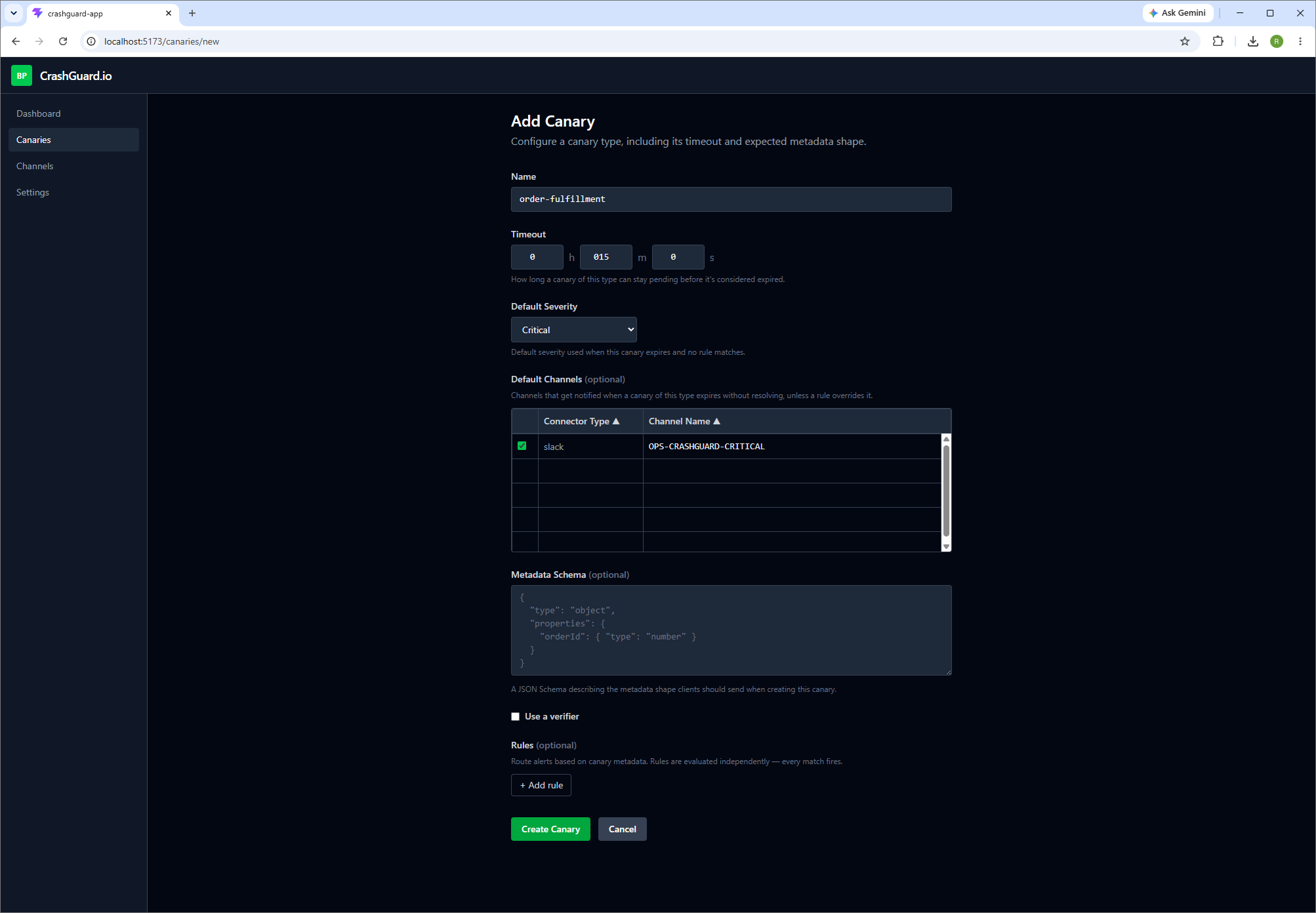
Under the hood, this calls POST /api/canary-types:
{
  "name": "nightly-export",
  "timeout": 1800,
  "extendLimit": 2,
  "severity": "Critical",
  "metadataSchema": null,
  "verifierUrl": null,
  "rules": [],
  "defaultChannelIds": [4]
}timeout— seconds a canary of this type can stay pending before it's overdue.extendLimit— how many times a verifier'sExtendaction can push the expiry back out, per canary.severity— used to prioritize alerts when one fires.verifierUrl— optional; the endpoint the Engine calls when a canary of this type goes overdue (see below).defaultChannelIds— ids of the channels (from the section above) that alerts route to by default.
rules let you override severity and channel per-field, based on a
canary's metadata — each rule names a field,
operator, and value to match, plus
the severity and channel to use
when it matches.
Starting a canary
Call CreateCanaryAsync at the point your job, workflow, or scheduled task
begins. CanaryType must match a canary type you've configured in the
Admin App, and ReferenceId identifies this specific run — use something
unique per execution, like a job ID.
var client = new CrashguardClient(new RestClient("http://localhost:8050"));

var canary = await client.CreateCanaryAsync(new CreateCanaryRequest
{
    CanaryType = "nightly-export",
    ReferenceId = jobId,
    Metadata = new { triggeredBy = "scheduler" },
});The Engine starts a countdown based on the canary type's configured timeout. If the canary isn't resolved before it expires, the Engine treats it as overdue and either fires alerts or calls a verifier, if one is configured.
Checkpointing a canary
Checkpoints record intermediate progress without affecting the canary's expiry. Use them to leave a trail of what stage a long-running job reached, useful when triaging a triggered canary later.
await client.CheckpointCanaryAsync(
    "nightly-export",
    jobId,
    stage: "uploaded-to-s3",
    metadata: new { rowCount = 41_203 });
If a job runs longer than expected but is still making progress, call
PulseCanaryAsync instead to push the expiry back out by the canary
type's timeout, without marking a checkpoint.
await client.PulseCanaryAsync("nightly-export", jobId);
Each pulse sets the canary's ExpiresAt to now plus the canary type's
timeout, the same way starting the canary did. Call it from inside a long-running loop — e.g. once per batch
or every few minutes — so the Engine doesn't flag the job as overdue while it's still healthy and working.
Pulsing doesn't record any progress trail; pair it with
CheckpointCanaryAsync if you also want that.
Resolving a canary
Call ResolveCanaryAsync once the job completes successfully. A resolved
canary is done — it won't be checked for expiry again.
await client.ResolveCanaryAsync("nightly-export", jobId);If the job fails outright, don't resolve it — just let the canary expire, or trigger it manually from the Admin App. An unresolved, expired canary is exactly what should alert you.
Adding a verifier
A verifier is your own HTTP endpoint, set as VerifierUrl on a canary
type. Instead of immediately triggering an alert when a canary expires, the Engine calls your verifier first
and lets it decide what should happen — useful when "didn't check in on time" doesn't always mean "actually
failed."
When a canary of that type goes overdue, the Engine sends an HTTP POST to
your verifier URL with this body:
{
  "canaryType": "nightly-export",
  "referenceId": "job-48213",
  "status": "Pending",
  "startedAt": "2026-06-23T02:00:00Z",
  "expiresAt": "2026-06-23T02:30:00Z",
  "extendCount": 0,
  "metadata": { "triggeredBy": "scheduler" }
}
Your verifier must respond with a JSON body naming one of three actions:
{ "action": "Trigger" }-
Trigger— the job actually failed. The Engine marks the canary triggered and fires alerts as configured. -
Extend— give it more time. The Engine pushes the expiry out by the canary type's timeout and incrementsextendCount, up to the type's configured extend limit. -
Resolve— the underlying work actually completed, it just never called back. The Engine marks the canary resolved as if your service had calledResolveCanaryAsyncitself.
A common pattern: have the verifier check the actual system the canary is watching (a queue depth, an S3 object's last-modified time, a downstream API) rather than trusting the absence of a check-in alone.