
Get Started
CrashGuard ships as a single Docker image containing the Engine API and the Admin App. Pull it, run it, and you're tracking canaries in minutes.
1. Pull the image
The image is published to Docker Hub on every release.
docker pull crashguardinc/crashguard.io:latest2. Run it
The container exposes two ports: 8080 for the Admin App (nginx) and
5050 for the Engine API. Map them to whatever host ports you'd like:
docker run -d \
  --name crashguard \
  -p 8080:8080 \
  -p 8050:5050 \
  -v crashguard-data:/data \
  crashguardinc/crashguard.io:latest
Once it's running, open http://localhost:8080 for the Admin App. Point
your services at http://localhost:8050 to create, checkpoint, and
resolve canaries.
3. Point your client SDK at the Engine
The Crashguard.Client SDK doesn't assume a URL — you construct the
underlying RestClient yourself and pass it in, pointed at whatever host
port you mapped to the container's 5050:
var restClient = new RestClient("http://localhost:8050");
var client = new CrashguardClient(restClient);
This is a different URL than the Admin App's Admin portal URL setting in
step 5 below — the SDK runs inside your own services and talks to the Engine directly, so it needs the
Engine's published host port (8050 in
the examples above), not the Admin App's port or address.
4. Persisting data
CrashGuard stores everything in a SQLite database at
/data/crashguard.db inside the container. That path is declared as a
Docker volume, so your data survives container restarts and recreation even if you
don't specify a volume yourself — Docker will create an anonymous one for you.
Mounting your own data directory is optional, but recommended — it makes the database easy to find, back up, or move to a new host:
docker run -d \
  --name crashguard \
  -p 8080:8080 \
  -p 8050:5050 \
  -v /home/me/crashguard-data:/data \
  crashguardinc/crashguard.io:latest
Either way, don't run with --rm if you
rely on the anonymous volume — removing the container without a named or bind-mounted volume can leave you
without an easy way to locate your data afterward.
5. docker-compose, if you prefer
services:
  crashguard:
    image: crashguardinc/crashguard.io:latest
    ports:
      - "8080:8080"
      - "8050:5050"
    volumes:
      - crashguard-data:/data

volumes:
  crashguard-data:
Run it with docker compose up -d.
6. Set the admin portal URL
Open the Admin App and go to Settings, then set
Admin portal URL to whatever address you actually use to reach it in your
browser — in the examples above, that's http://localhost:8080.
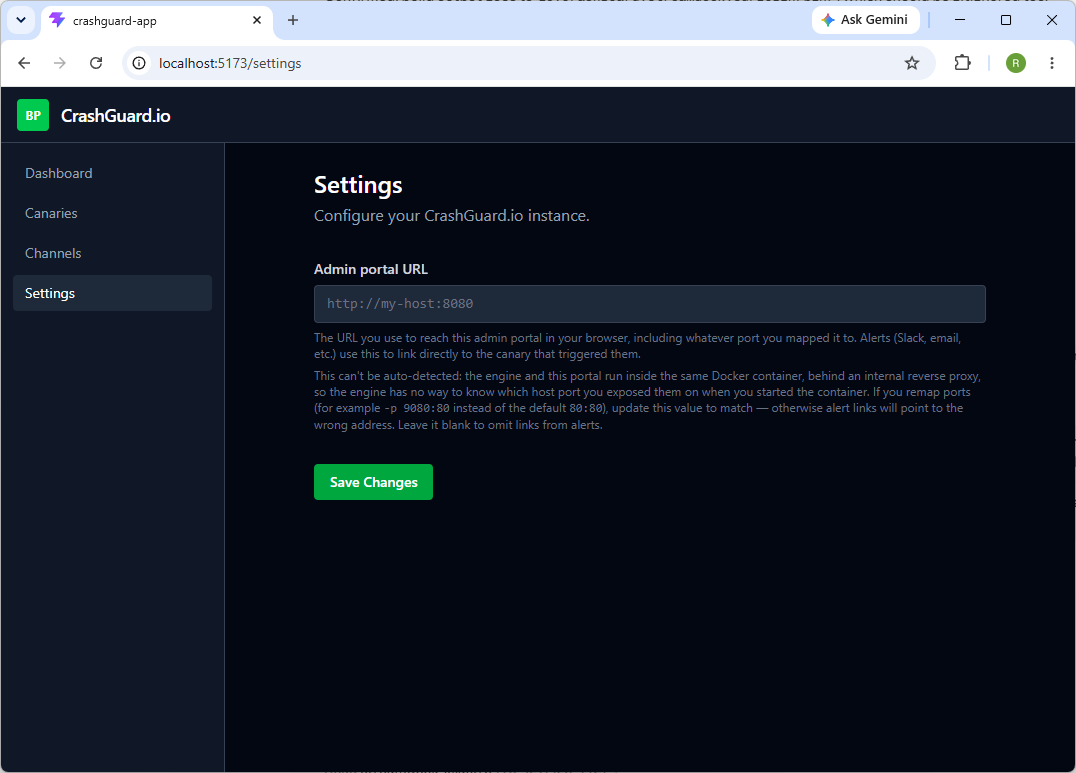
This isn't optional cosmetics — alerts (Slack, email, etc.) use it to link directly to the canary that triggered them. Without it, alerts have no way to point you anywhere useful.
The Engine can't figure this out on its own. It runs in the same container as the Admin App, behind an
internal reverse proxy, so it only ever sees its own internal ports — it has no visibility into whatever
host port you mapped with -p when you started the container. If you
remap ports (as in the examples above, where the internal nginx port 8080
is exposed as 8080 on the host), this field is the only place that mapping is recorded — leave it
blank and alerts simply omit the link rather than guess wrong.